
Ever wanted to see yourself, your friends, or even your pets performing in a Tiny Desk concert? The viral Outstanding Tiny Desk AI trend makes it possible. With just a few photos, you can create your own concert video featuring the famous laughing lead singer, keyboard player, backing singers, and saxophone solo.
In this guide, we'll show you how to make an Outstanding Tiny Desk AI video step by step, without video editing skills or complicated AI prompts.
What Is the Outstanding Tiny Desk AI Trend?
The Outstanding Tiny Desk AI trend is inspired by Charlie Wilson's NPR Tiny Desk performance of "Outstanding" by The Gap Band.
The trend went viral in October 2026 after AI-generated videos showed losing college football coaches performing the song together. The funny expressions, enthusiastic singing, and unexpected performers quickly caught people's attention on TikTok and Instagram.
Now, people are recreating the same concert with their own faces, friends, and pets.
The idea is simple: replace the performers with people or pets from your photos while keeping the recognizable concert performance.
What You Need Before Starting
You only need a few things to create your video:
- 1–5 photos: Use clear photos of yourself, friends, or pets. A group photo also works.
- A device: A phone or computer with an internet connection.
- Outstanding Tiny Desk AI: An online tool that handles the video generation.
- Credits: 50 credits for a 480p video or 100 credits for a 720p video.
For the best results, choose bright, sharp photos where faces are clearly visible. Avoid blurry images, heavy filters, or faces hidden behind sunglasses.
You don't need to prepare a reference video, write prompts, or install editing software.
How to Make an Outstanding Tiny Desk AI Video: Step by Step
Step 1: Open the Outstanding Tiny Desk AI Generator
Visit https://outstanding-tinydeskai.com and find the "Cast Your Tiny Desk Band" section.
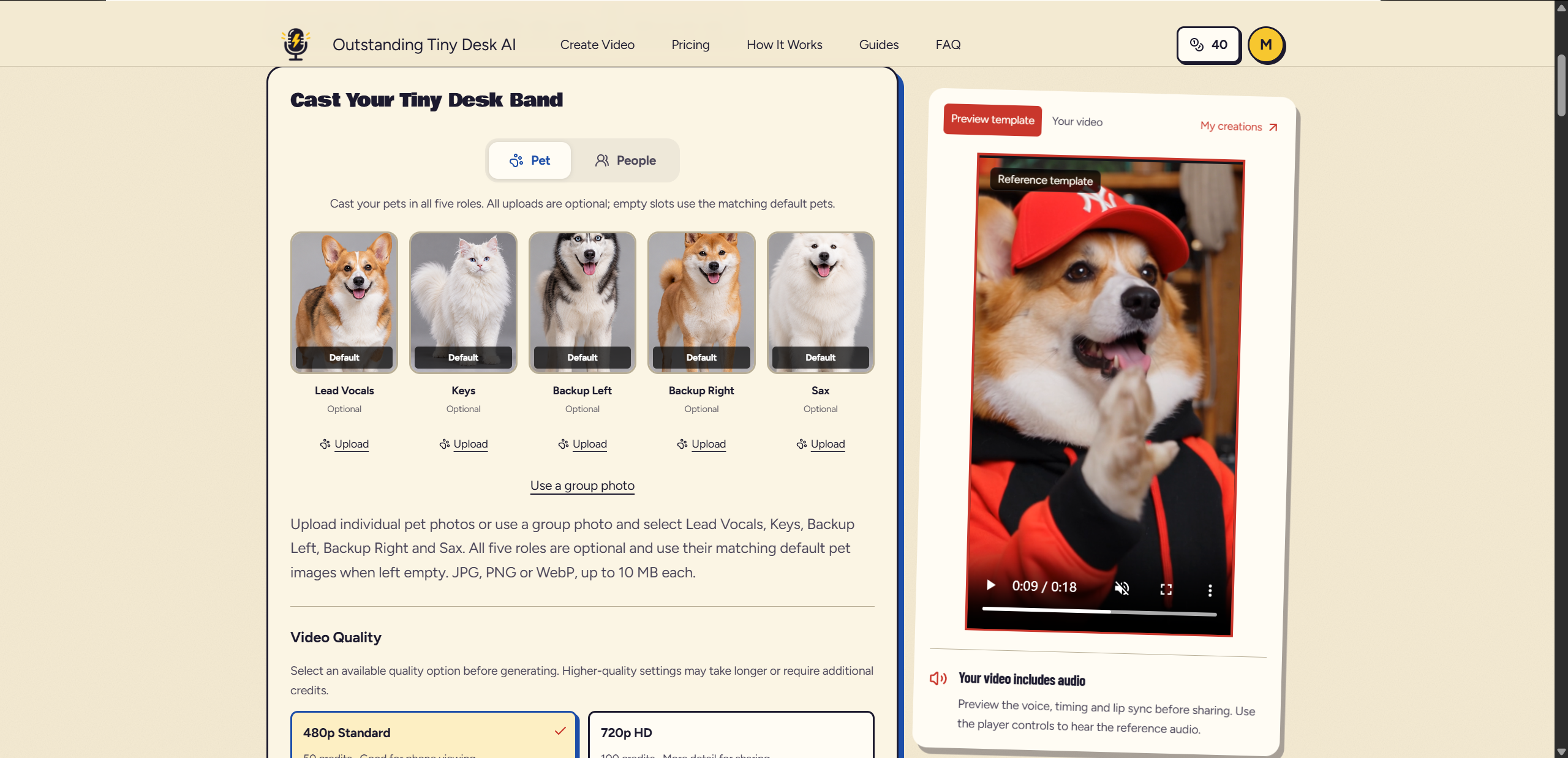
You'll see five available performer positions:
- Lead Vocals: The main singer who performs the famous laughing close-up.
- Keys: The keyboard player performing behind the red keyboard.
- Backup Left: The backing singer on the left.
- Backup Right: The backing singer on the right.
- Sax: The saxophone player performing the solo.
You can replace just the lead singer or customize all five performers.
Step 2: Upload Your Photos
Choose "People" or "Pet" mode depending on who you want in your concert.
Click "Upload" under Lead Vocals and select your photo. This position is required because every video needs a main singer.
Next, upload photos for any additional performers you want to replace.
You have two ways to upload:
- Individual photos: Upload separate photos for each performer.
- Group photo: Upload one group photo and select the people you want to assign to different roles.
For example, you could make yourself the lead singer, put your best friend on the keyboard, and have your other friends perform as backing singers.
You can also create a concert featuring your dog or cat using Pet Mode.
Don't worry if you only have one photo. The remaining positions will automatically use the default AI musicians.
Supported image formats include JPG, PNG, and WebP, with a maximum size of 10 MB per image.
Step 3: Choose Your Video Quality
Once your performers are ready, choose your preferred video resolution.
Outstanding Tiny Desk AI offers two options:
- 480p Standard — 50 credits. Suitable for watching and sharing on mobile devices.
- 720p HD — 100 credits. Provides more detail for your finished concert video.
Both options generate a vertical 9:16 video, making them suitable for TikTok, Instagram Reels, and YouTube Shorts.
Step 4: Generate Your Outstanding Tiny Desk AI Video
Before generating, confirm that you have permission to use the uploaded photos.
Then click "Generate My Tiny Desk Video" to start.
The AI will place your selected people or pets into the concert, recreating the familiar singing performance, laughing expressions, keyboard scenes, backing vocals, and saxophone solo.
You don't need to write any prompts or manually edit the video. The concert template, camera movements, and music are handled automatically.
Step 5: Download and Share Your Video
Once generation is complete, preview your finished Outstanding Tiny Desk AI video.
Check that your performers appear in the correct positions and that their faces look consistent throughout the performance.
Your finished video includes:
- A 15-second Tiny Desk concert performance.
- Vertical 9:16 video format.
- The original "Outstanding" concert audio.
- No watermark.
Download the video and share it with friends or post it on TikTok, Instagram Reels, or YouTube Shorts.
Your generated videos remain available for seven days, so you can return and download them again during that period.
Tips for Making a Better Outstanding Tiny Desk AI Video
A few simple tips can help improve your results.
- Use clear, front-facing photos with good lighting.
- Choose photos where the face and upper body are visible.
- Avoid sunglasses, masks, heavy filters, and blurry images.
- When using a group photo, make sure everyone's face is easy to distinguish.
- Try different performer combinations to create funnier concert videos.
For a funny video, put an unexpected performer in the lead singer position, such as a serious-looking friend or your pet. The contrast between their appearance and the energetic performance is what makes this trend entertaining.
Create Your Outstanding Tiny Desk AI Video
Turn photos of yourself, friends, or pets into a viral Tiny Desk concert. Upload, generate, and share!
Create Your Video